Guided Tour
Walkthrough of the timezone calendar visualisation features, captured from the redesigned production site.
Landing and Timezone Controls
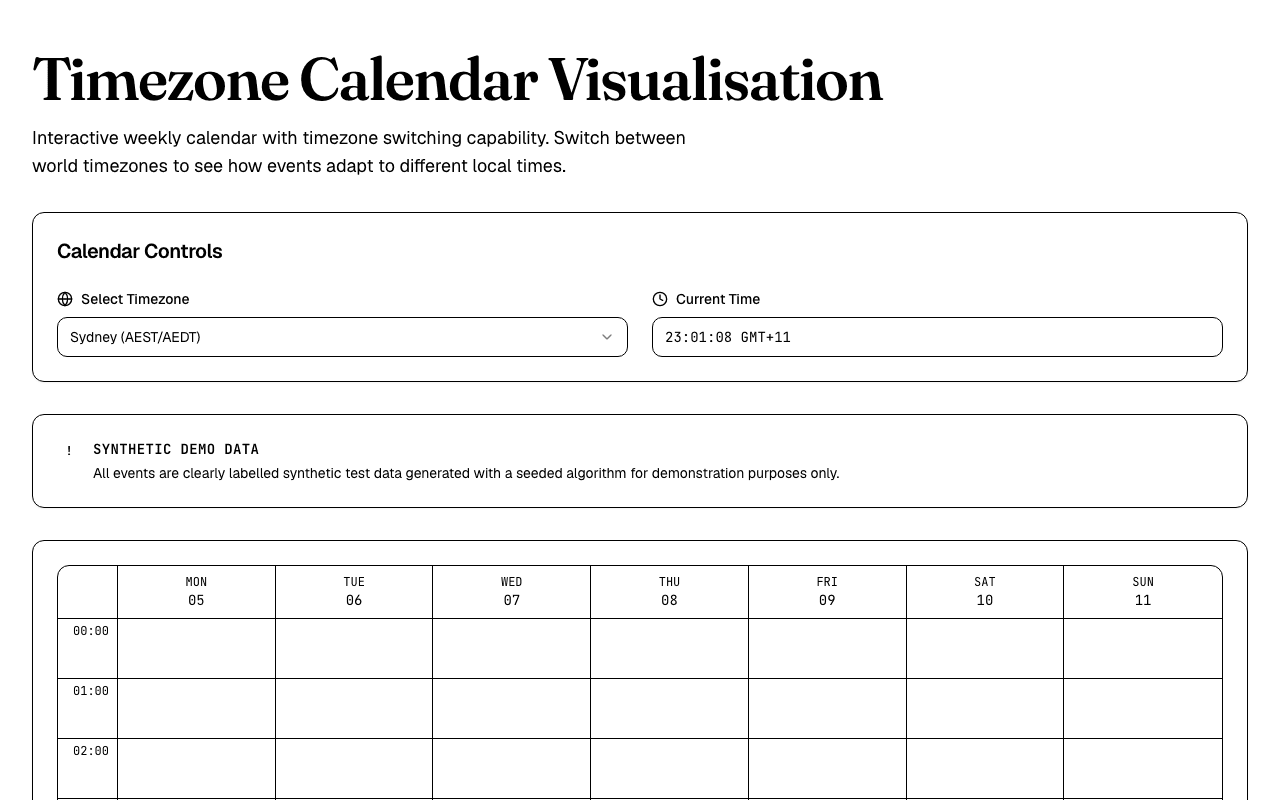
The calendar opens with Sydney timezone selected by default. The refined hero section introduces the app with clear typography and a polished control panel featuring timezone selection and current time display.
Timezone Selector
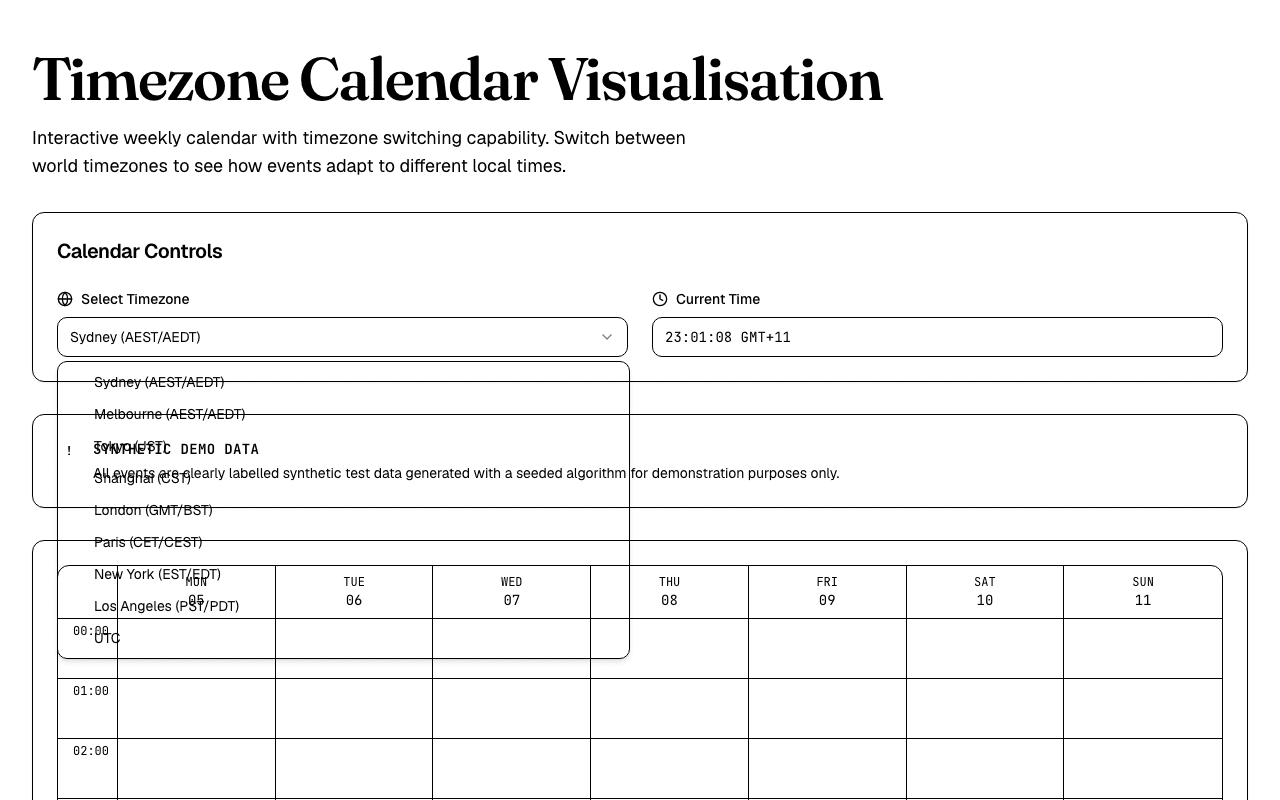
Clicking the timezone selector reveals nine world timezone options in a clean dropdown interface. The cobalt accent colour highlights the active selection state.
Timezone Switching
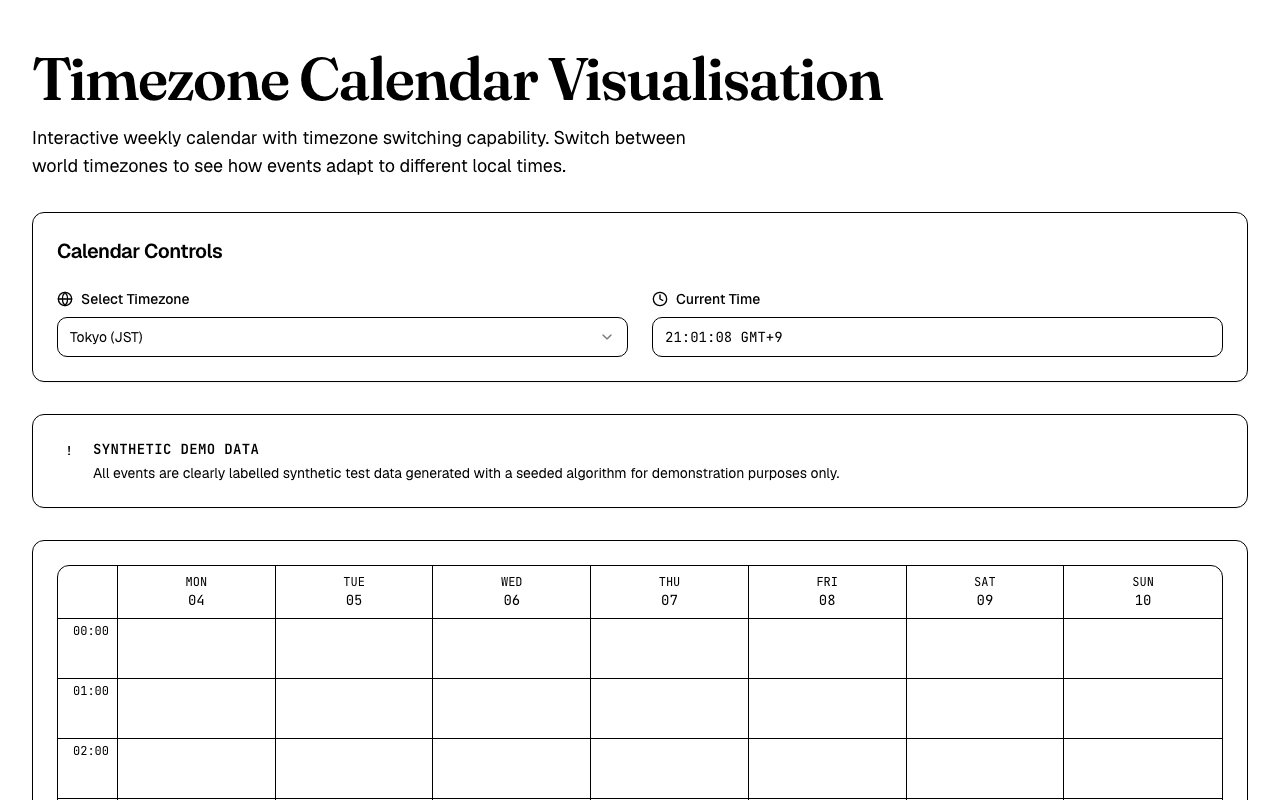
Selecting Tokyo demonstrates instant timezone conversion. All events maintain temporal consistency while adapting to the new local time, with the calendar grid displaying readable event chips organised by category.
Technical Details
All screenshots captured by Playwright from the production deployment at vercel-calendar-visualisation.vercel.app. The showcase script runs reproducible walkthroughs that verify each feature works as shown.
Events are generated synthetically using a seeded pseudo-random algorithm. Same seed produces identical events across all runs. The calendar grid uses date-fns-tz for timezone conversions, ensuring correct display regardless of the viewer's system timezone.